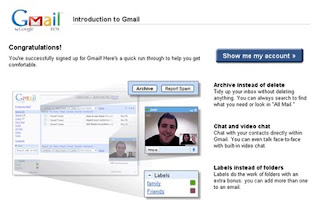
 To create an email account using Yahoo! just like to create an email account in Gmail, which is very easy and also free. We can also access various services from Yahoo! others, such as support for the hugely popular chat, like Yahoo! Messenger, and many other services that we can enjoy from Yahoo!.
If you want to create an email account from Yahoo!, here's how to make it:
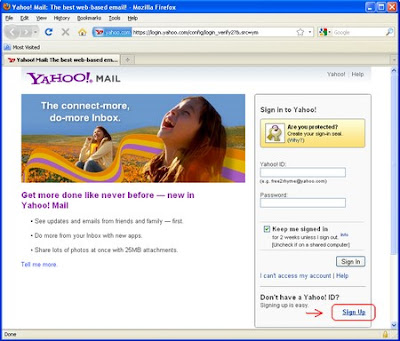
Type in mail.yahoo.com in the address bar, then press Enter, as shown below.

Once entered into the Login page, then select or click Menu Sign Up. Located at the bottom right corner. See the following image.
Next will come the Yahoo! Registration page to create an account Yahoo!. Please fill.
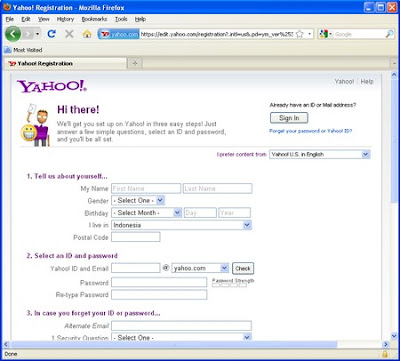
Fill out the registration form, filling the following examples:
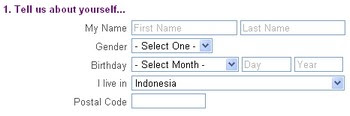
• My Name
Fill with your First Name and your Last Name.
• Gender
Select your gender.
• Birthday
Fill in your birth date.
• I live in
Choose a Country where you live.
• Postal Code
Fill in the zip code where you live.
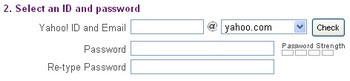
• Yahoo! ID and Email
The ID you select lets you sign in to all Yahoo! products and will be used for your free Yahoo! email address. If the ID you want is not available, try adding a word or number to make it unique.
There are several options for your ID name, you can use yahoo.com, ymail.com and rocketmail.com.
Examples:
your_id@yahoo.com
your_id @ymail.com
your_id @rocketmail.com
After that, click the Check button on the right, to check whether the ID that you choose is available. If the desired ID is not available, try to add the words or numbers to make it unique. Or you can select the ID suggested by Yahoo!.
• Password
Fill in the password which will be a password to log into your email account. Usage and lower case letters influential, at least 6 characters long and a maximum of 32 characters, no spaces. Make it more secure do not use your ID name. Or if you want to use your ID Yahoo!, can be combined with letters, numbers or characters (!?@#$%).
• Re-type Password
Type the password again been made earlier.

• Alternate Email
All communications from Yahoo! will be sent to this primary email address, including information that will help you recover your ID or password. If you have another email address please fill in, if you do not have another email address do not need to fill.
• Security Question
Choose a question for the future security if you forget your password, Yahoo! will provide questions and will ask for answers to these questions.
• Your Answer
Fill in your answers to last that will be used to answer the above question if you forget your password in the future. Make sure your answer you will remember but hard to tell someone else.

• Type the code shown
Type the code shown in the picture on the column. If you can not read the code could be replaced with other code by clicking Try a new code.
The last step, please check the Your Account information you've entered above (feel free to change anything you like), and review the Yahoo! Terms of Service. If you are finished, please check Do you agree? and click Create My Account. See picture below.
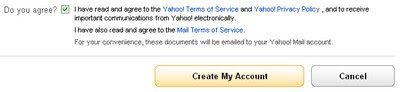
If not successful, check back where lies the fault. If it is successful it will be like in the picture below.
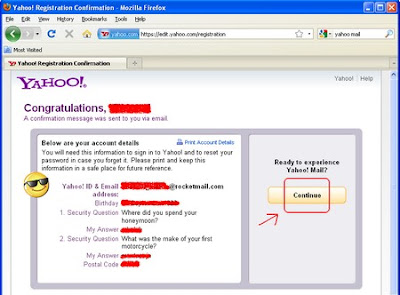
Congratulations!
Now you have an email account at Yahoo!. To get started, click the Continue button.
Once entered into the Login page, then select or click Menu Sign Up. Located at the bottom right corner. See the following image.
Next will come the Yahoo! Registration page to create an account Yahoo!. Please fill.
Fill out the registration form, filling the following examples:
• My Name
Fill with your First Name and your Last Name.
• Gender
Select your gender.
• Birthday
Fill in your birth date.
• I live in
Choose a Country where you live.
• Postal Code
Fill in the zip code where you live.
• Yahoo! ID and Email
The ID you select lets you sign in to all Yahoo! products and will be used for your free Yahoo! email address. If the ID you want is not available, try adding a word or number to make it unique.
There are several options for your ID name, you can use yahoo.com, ymail.com and rocketmail.com.
Examples:
your_id@yahoo.com
your_id @ymail.com
your_id @rocketmail.com
After that, click the Check button on the right, to check whether the ID that you choose is available. If the desired ID is not available, try to add the words or numbers to make it unique. Or you can select the ID suggested by Yahoo!.
• Password
Fill in the password which will be a password to log into your email account. Usage and lower case letters influential, at least 6 characters long and a maximum of 32 characters, no spaces. Make it more secure do not use your ID name. Or if you want to use your ID Yahoo!, can be combined with letters, numbers or characters (!?@#$%).
• Re-type Password
Type the password again been made earlier.
• Alternate Email
All communications from Yahoo! will be sent to this primary email address, including information that will help you recover your ID or password. If you have another email address please fill in, if you do not have another email address do not need to fill.
• Security Question
Choose a question for the future security if you forget your password, Yahoo! will provide questions and will ask for answers to these questions.
• Your Answer
Fill in your answers to last that will be used to answer the above question if you forget your password in the future. Make sure your answer you will remember but hard to tell someone else.
• Type the code shown
Type the code shown in the picture on the column. If you can not read the code could be replaced with other code by clicking Try a new code.
The last step, please check the Your Account information you've entered above (feel free to change anything you like), and review the Yahoo! Terms of Service. If you are finished, please check Do you agree? and click Create My Account. See picture below.
If not successful, check back where lies the fault. If it is successful it will be like in the picture below.
Congratulations!
Now you have an email account at Yahoo!. To get started, click the Continue button.